First Steps in Infodeck
After creating your account, follow these steps to configure Infodeck for your organization.
Quick Summary
Add your first Location, register an Asset, invite your Team, then create your first Work Order.
The Setup Process
Complete these four steps to get Infodeck ready:
1. Add Locations → 2. Register Assets → 3. Build Team → 4. Create Work Orders
Step 1: Add Your First Location
Locations represent your physical facilities — buildings, floors, and rooms.
Create a Building
- From the left sidebar, click Locations
- Click Create Location
- Enter:
- Name: Your building name (e.g., "Corporate HQ")
- Address: Physical address
- Click Create
Add Floors (SubLocations)
- In the location tree, click on your building
- Click Create SubLocation
- Enter floor name (e.g., "Floor 1 - Lobby")
- Click Create
- Repeat for each floor
Add Rooms (Zones)
- Click on a floor in the tree
- Click Create Zone
- Enter room name (e.g., "Conference Room A")
- Click Create
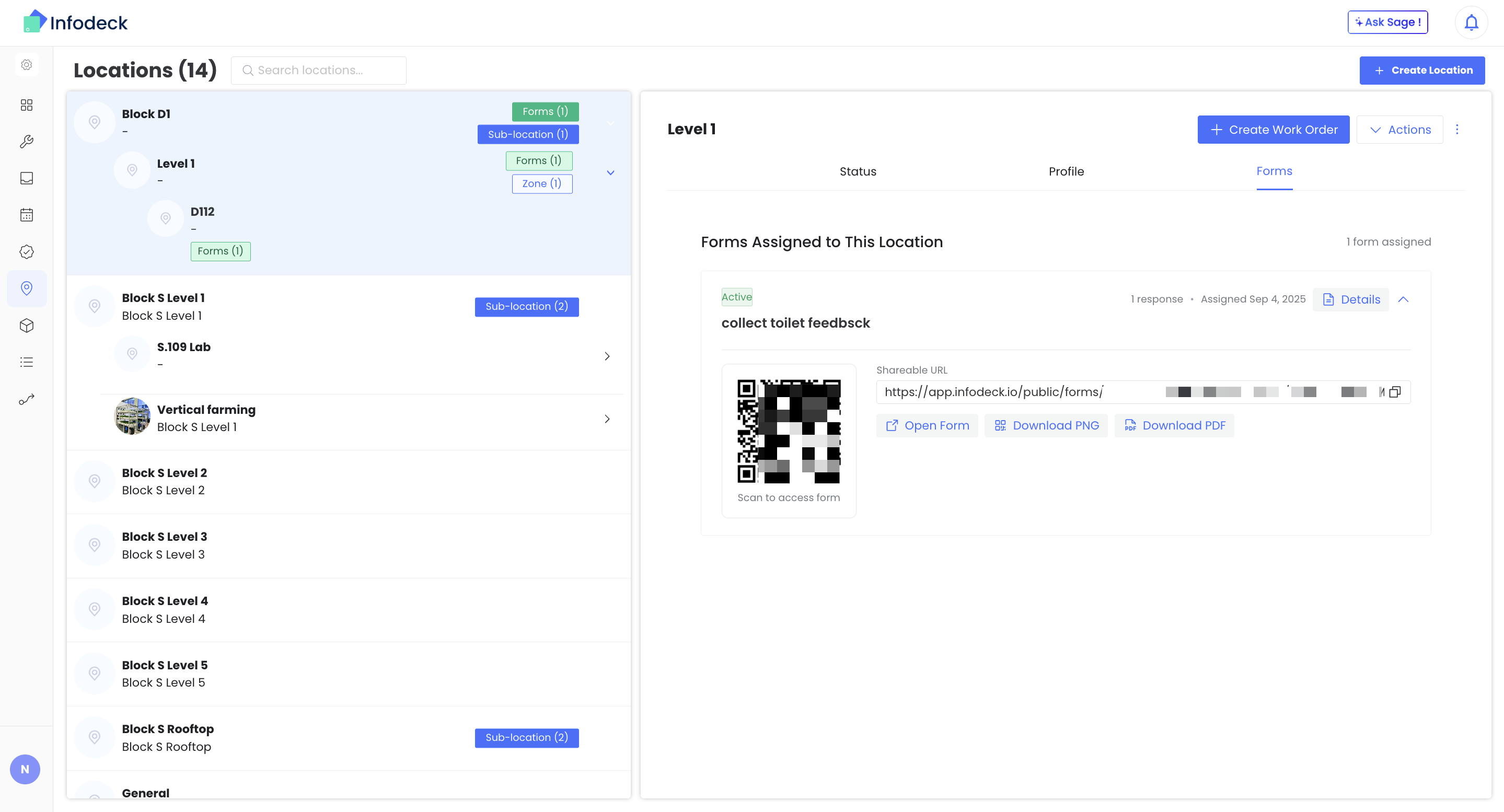
Result: Your location hierarchy is ready:
Step 2: Register Your First Asset
Assets are the equipment you track and maintain.
Create an Asset Type (Optional)
If you need a custom category:
- Click the Settings gear icon in the sidebar
- Select Asset Type
- Click Create Asset Type
- Enter:
- Name: Equipment category (e.g., "HVAC Unit")
- Description: What this type includes
- Click Create
Register an Asset
- From the left sidebar, click Asset
- Click Create Asset
- Enter:
- Asset Type: Select the equipment type
- Location: Where the asset is installed
- Name: Specific identifier (e.g., "AC Unit - Server Room")
- Add optional details:
- Serial number
- Model
- Manufacturer
- Purchase date
- Click Create
Result: Your equipment is tracked in Infodeck and ready for work orders.
Step 3: Invite Your Team
Add team members so they can receive and complete work orders.
Create a Team
- Click the Settings gear icon in the sidebar
- Select Teams / Members
- Go to the Teams tab
- Click Create Teams
- Enter:
- Name: Team name (e.g., "Maintenance Team")
- Description: Team purpose
- Click Create
Invite Users
- In Settings gear → Teams / Members, stay on Users tab
- Click Invite Users
- Enter:
- Given Name: First name
- Family Name: Last name
- Email: Work email address
- Teams: Select which team(s)
- Click Send Invitation
Result: Your team member receives an email invitation to join.
Step 4: Create Your First Work Order
Work orders track maintenance tasks from creation to completion.
Create a Work Order
- From the left sidebar, click Work Orders
- Click Create Work Order
- Enter required fields:
- Title: Clear description (e.g., "Quarterly HVAC filter replacement")
- Location: Where work will be performed
- Priority: Low, Medium, High, or Urgent
- Enter optional fields:
- Assign To: Team or user responsible
- Due Date: When work should complete
- Description: Detailed instructions
- Click Create
Result: Your first work order is created and assigned!
Real-World Example: Complete Setup Walkthrough
Situation: ABC Property Management is setting up Infodeck for their shopping mall.
Day 1: Location Setup
- Create top-level location:
Riverside Mall - Add sub-locations:
Level 1 - RetailLevel 2 - Food CourtLevel 3 - EntertainmentParking Basement
- Add zones for key areas:
Management OfficeCentral HVAC RoomLoading DockTenant Space 101-120
Day 2: Asset Registration
- Set up asset types:
- HVAC Unit
- Fire Extinguisher
- Elevator
- Escalator
- Register key assets:
Central AHU-01(HVAC)Elevator 1 - Main AtriumEscalator - North Wing- Fire extinguishers (by location)
Day 3: Team Setup
- Create teams:
Maintenance Team(HVAC, electrical)Cleaning TeamSecurity Team
- Invite team leads:
- John (Maintenance Manager)
- Sarah (Cleaning Supervisor)
- Mike (Security Chief)
Day 4: First Work Orders
- Create preventive maintenance work orders:
- Monthly HVAC filter inspection
- Weekly elevator safety check
- Daily cleaning rounds
Result: Riverside Mall is fully set up in Infodeck with locations, assets, teams, and initial work orders.
What's Next?
After completing first steps:
| Feature | Description | Guide |
|---|---|---|
| Forms | Create digital checklists | Create a Form |
| Dashboards | Build visual displays | Create a Dashboard |
| IoT Devices | Connect sensors | Register IoT Devices |
| Smart Workflows | Automate alerts | Create Smart Workflows |
Tips for Success
Naming Conventions
Use consistent, descriptive names:
| Type | Good Example | Avoid |
|---|---|---|
| Location | Building A - Floor 3 | Bldg A F3 |
| Asset | AC Unit - Server Room 301 | AC1 |
| Work Order | Replace HVAC filter - Room 205 | HVAC |
Start Simple
- Begin with one building/location
- Add a few key assets
- Create one or two work orders
- Expand as you learn the system
Involve Your Team
- Add team members early
- Let them explore the interface
- Gather feedback on workflow
- Adjust setup based on needs
Troubleshooting
Can't Create Location
| Issue | Solution |
|---|---|
| Button disabled | Check if you've reached plan limit |
| Permission denied | Contact admin for location create permission |
Can't Assign Work Order
| Issue | Solution |
|---|---|
| No users available | Invite team members first |
| User not in dropdown | Ensure they've accepted invitation |
Asset Type Not Available
| Issue | Solution |
|---|---|
| List is empty | Create asset types in Settings gear → Asset Type |
| Missing type | Create the specific type you need |
Related Articles
Need help? Contact Infodeck Support